


If you are wondering how to disavow backlinks in Ahrefs, the direct answer is simple: Ahrefs itself does not disavow backlinks. Instead, I use Ahrefs to analyse my backlink profile, identify harmful links, export the data, and then submit a disavow file to Google through the Google Disavow Tool.
Backlinks play a critical role in search engine rankings, but not every link pointing to your website is beneficial. Some links may come from spam websites, automated link networks, or irrelevant domains, which can damage your website’s credibility in search engines.
In this guide, I will explain how I identify toxic backlinks using Ahrefs, prepare a disavow file, and submit it to Google safely. I will also discuss when disavowing backlinks is necessary and when it may actually do more harm than good.
Stop! Read This Before You Disavow (2026 Update)
In 2026, Google’s SpamBrain AI is smarter than ever. For the vast majority of websites, you do not need to disavow links. Google now automatically identifies and “ignores” spammy, irrelevant, or low-quality backlinks without penalizing your site.
You should ONLY use the Disavow Tool if:
- You have a Manual Action notification in your Google Search Console.
- You are certain you are under a massive Negative SEO attack (thousands of spam links appearing overnight).
- You (or a previous SEO) participated in paid link schemes and want to clean the slate.
In many cases, harmful backlinks appear because website owners previously tried to buy backlinks from low-quality networks that promised fast ranking improvements. These types of links often come from automated blog networks or irrelevant domains, which can later create problems if Google detects unnatural link patterns.
The Risk: Disavowing links that Google actually likes, even if they have low “Domain Rating”, can cause your rankings to drop. Treat this tool as a “last resort” measure.
What Does It Mean to Disavow Backlinks?
Before learning the process, it is important to understand what disavowing backlinks actually means.
When a website links to your site, search engines like Google interpret that link as a signal of trust or authority. However, if a large number of links come from low-quality or spam websites, they can create a negative impression of your website.
Disavowing backlinks means telling Google not to consider specific links when evaluating your website’s ranking signals.
Essentially, you are saying to Google:
“I do not trust these links and do not want them to influence my search rankings.”
The concept became important after Google introduced stricter link quality guidelines following algorithm updates targeting spammy link building practices.
However, disavowing backlinks should not be your first action. The recommended approach is:
- Identify suspicious backlinks
- Attempt to remove them by contacting website owners
- Disavow the links only if removal is not possible
Understanding this process helps prevent unnecessary SEO damage.
Why You Should Audit Your Backlinks Before Using the Disavow Tool?
Before creating a disavow file, I always perform a complete backlink audit. This step is essential because not every low-authority link is harmful.
Many beginners make the mistake of disavowing backlinks simply because the linking site has a low Domain Rating (DR) or limited traffic. In reality, some low-authority websites may still provide legitimate links.
Why Backlink Audits Matter?
A backlink audit helps you:
- Understand the overall health of your backlink profile
- Identify patterns of spam or unnatural links
- Detect negative SEO attacks
- Protect your domain authority
Without analysing your links carefully, you risk disavowing valuable backlinks that contribute to your rankings.
Critical Distinction: Toxic Spam vs. Low-Authority Links
One of the most common mistakes is disavowing a link just because it has a low Domain Rating (DR). A new, high-quality blog might have a DR of 5 but still provide “SEO juice.” Conversely, a DR 80 site could be a “link farm” that triggers a Manual Action.
Use this table to decide which links stay and which links go:
| Feature | Toxic/Spam (Disavow) | Low-Quality/New (Keep) |
| Domain Name | Gibberish (e.g., xyz-123-cheap-pills.click) |
Relevant name (e.g., tech-tips-for-beginners.com) |
| Content | Spun text, adult/gambling, or no text at all | Actual articles, even if short or simple |
| Outbound Links | Thousands of links to unrelated sites | Links to a few relevant, high-quality sites |
| Anchor Text | Irrelevant keywords (Pharmacy, Casino) | Branded terms or “Click here” |
| Link Velocity | Part of a sudden spike (1k+ links in 24hrs) | Natural, slow growth over time |
| Site Safety | Triggers malware/security warnings | Safe to browse, just looks “basic” |
Signs Your Website May Have Harmful Backlinks
Some common indicators include:
- Sudden drop in rankings
- Large number of backlinks from unrelated websites
- Spam anchor text such as casino or adult keywords
- Hundreds of links from a single low-quality domain
- Links from hacked or malware-infected websites
When I notice these patterns, I begin a detailed analysis using Ahrefs.
Can You Disavow Backlinks Directly in Ahrefs?
Many people assume that Ahrefs provides a direct disavow feature, but that is not the case.
Ahrefs is primarily a backlink analysis tool, not a link removal or disavow platform.
Instead, it helps me perform tasks such as:
- Analysing backlinks pointing to my site
- Reviewing referring domains
- Checking anchor text distribution
- Detecting suspicious link patterns
- Exporting backlink data
After identifying harmful links, I then use Google’s Disavow Tool inside Google Search Console to submit a disavow file.
The typical workflow looks like this:
Step 1: Analyse backlinks in Ahrefs
Step 2: Identify harmful links
Step 3: Export backlink list
Step 4: Create a disavow file
Step 5: Submit the file to Google
This process ensures that Google ignores the selected links during ranking evaluations.
How to Identify Toxic Backlinks Using Ahrefs?
When performing a backlink audit, Ahrefs provides several powerful reports that help identify suspicious links.
The most useful reports are:
- Site Explorer
- Referring Domains report
- Backlinks report
- Anchor Text report
Let’s look at how I use each of these.
Using Ahrefs Site Explorer
I begin by opening Site Explorer in Ahrefs and entering my domain name.
The Site Explorer dashboard provides a summary of:
- Total backlinks
- Referring domains
- Domain Rating
- Anchor text distribution
This overview gives me an initial understanding of whether my backlink profile looks natural or potentially problematic.
For example, if I see thousands of backlinks from a small number of domains, it may indicate link spam.
Checking Referring Domains
Next, I review the Referring Domains report.
This report shows all domains linking to my website. I carefully review domains that:
- Have extremely low authority
- Are unrelated to my industry
- Contain suspicious domain names
- Appear to be link directories or blog networks
Spam domains often display patterns such as:
- Random characters in domain names
- Foreign language websites unrelated to my niche
- Websites with hundreds of outbound links on every page
When I encounter these domains, I mark them for further review.
Spotting Spam or Low-Quality Links
The Backlinks report allows me to analyse individual links.
Some common signs of spam backlinks include:
- Blog comment spam
- Automatically generated pages
- Link farms
- Websites with thousands of outgoing links
- Pages containing very little original content
I also check whether multiple spam links originate from the same domain. If they do, it is usually better to disavow the entire domain instead of individual pages.
Analysing Anchor Text Patterns
Anchor text analysis is another important step.
If the anchor text profile contains excessive keywords such as:
- Gambling terms
- Adult keywords
- Pharmaceutical phrases
- Irrelevant promotional text
this may indicate spam link building or negative SEO.
Ahrefs makes it easy to detect these patterns through the Anchors report.
Step-by-Step Guide: How to Disavow Backlinks in Ahrefs?
Now let me explain the complete step-by-step process I follow when disavowing backlinks.
Step 1: Open Ahrefs Site Explorer
First, I log in to my Ahrefs account and navigate to the Site Explorer tool.
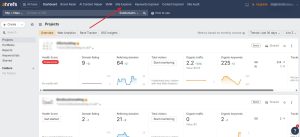
Once I’m inside Site Explorer, I enter my website domain in the search bar and run the analysis. This gives me an overview of my website’s backlink profile, including the number of backlinks, referring domains, and overall link authority.
Next, I click on Backlinks or Referring Domains in the left-hand menu to view detailed information about all the websites linking to my site.
Step 2: Analyse the Backlink Profile
At this stage, I carefully review the backlinks pointing to my website.
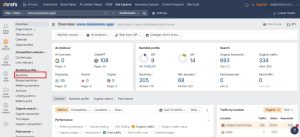
My main goal here is to identify any links that might be harmful or suspicious. While reviewing the data, I focus on spotting:
- Spam domains
- Link networks or link farms
- Suspicious or irrelevant anchor text
- Websites that have no relevance to my niche
By analysing these signals, I can separate potentially harmful backlinks from normal, healthy backlinks.
When analyzing your profile, look for a sudden spike in Link Velocity, a rapid increase in new links that doesn’t match your usual growth. This is often a sign of a Negative SEO attack. If your site has suffered an Algorithmic Devaluation (a drop in traffic without a specific notification), it’s likely that Google’s AI has already filtered these links.
However, if your Search Intent analysis shows you’re losing rankings for brand terms, or if you have a Manual Action message in Search Console, a manual disavow is your only path to recovery.
Step 3: Filter Suspicious Links
To make the analysis easier, I use Ahrefs’ filtering options to narrow down the backlink list.
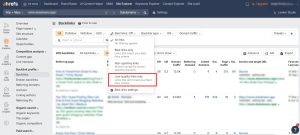
Some of the filters I commonly use include:
- Domain Rating (DR) to find very low-quality domains
- Dofollow links, since these pass SEO value
- Platform type such as blogs, forums, or directories
- Language filters to detect unrelated foreign-language sites
Applying these filters helps me quickly identify backlinks that may require further review or disavowing.
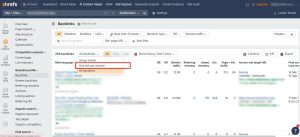
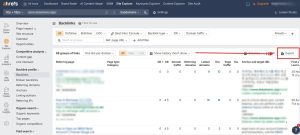
Step 4: Export the Backlinks List
After identifying the suspicious backlinks, I export the data so I can prepare the disavow list.
Here’s how I do it:
- I click the Export button in the Ahrefs report.
- I choose whether I want to export referring domains or individual backlinks.
- I download the report as a CSV file.
This exported file contains all the backlink data I need to review and use when creating the disavow file.
Step 5: Create a Disavow File (.txt)
Next, I create a disavow file in plain text (.txt) format, which is the format required by Google.
Inside the file, I add the domains or URLs that I want Google to ignore.
Each entry is placed on a separate line.
Here is a simple example of how my disavow file might look:
# Disavowing spam backlinks
domain:spamdomain.com
domain:badlinks.net
https://spamwebsite.com/page.html
In most cases, I prefer disavowing entire domains instead of individual URLs, because spam websites often generate multiple pages linking to my site.
Step 6: Submit the File to Google Disavow Tool
After creating the disavow file, the final step is to submit it through Google’s official Disavow Tool. This tells Google to ignore the backlinks you have identified during your Ahrefs backlink audit.
Here is the process I follow.
First, I open the Google Disavow Tool by visiting:
https://search.google.com/search-console/disavow-links
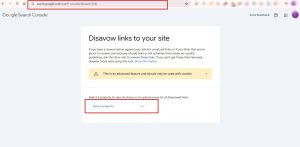
Once the page loads, Google will ask me to select the website property connected to my Google Search Console account. This is the same property where my website is verified.
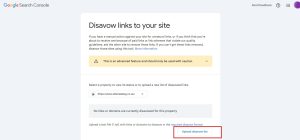
After selecting the correct property, I proceed with the following steps:
- Click Upload Disavow List
- Select the .txt disavow file that I created earlier
- Upload the file containing the domains or URLs I exported and analysed from Ahrefs
- Confirm the submission
The uploaded file will now become the active disavow list for that property.
It is important to remember that Google does not process the disavow request instantly. Instead, the links are gradually ignored as Google crawls and reindexes the web over time. This means it may take several weeks before the changes are reflected in your backlink evaluation.
If I ever need to update the disavow file later, I simply upload a new version of the file, and Google will replace the previous one.
This completes the process of identifying harmful backlinks in Ahrefs and submitting them to Google for disavowal.
Example of a Proper Google Disavow File
Below is a simple structure used in most disavow files.
| Type | Example | Description |
| Comment | # Spam backlinks | Notes for internal reference |
| Domain | domain:spamdomain.com | Ignore all links from domain |
| Domain | domain:badlinks.net | Disavow entire domain |
| URL | https://spam.com/page.html | Ignore specific page |
Formatting rules include:
- One entry per line
- UTF-8 encoding
- Plain text format
Incorrect formatting may cause Google to reject the file.
Real-Life Example: Cleaning a Toxic Backlink Profile
Let me share a practical example from an SEO project.
A small business website experienced a significant ranking drop after a negative SEO attack. When I analysed the site in Ahrefs, I discovered over 3,000 backlinks from spam websites.
Most of these links were generated from:
- Automated blog networks
- Low-quality directories
- Foreign language spam websites
Using Ahrefs, I exported all referring domains and carefully reviewed them.
After analysis:
- 180 domains were identified as spam
- A disavow file was created
- The file was submitted to Google
Within two months, the backlink profile stabilised and rankings gradually improved.
This example shows that careful backlink analysis combined with proper disavowing can help protect a website’s SEO performance. In situations where a website has thousands of spam links, many businesses choose to work with a professional link building agency like ClickDo IO that can perform a detailed backlink audit, identify toxic domains, and rebuild a healthier link profile through legitimate outreach strategies.
What are the Best Practices When Disavowing Backlinks?
The disavow tool should always be used carefully.
Here are best practices I follow:
- Always attempt link removal first: Contact the website owner and request link removal before using the disavow tool.
- Avoid disavowing normal backlinks: Low authority does not necessarily mean harmful.
- Monitor backlinks regularly: Backlink profiles change frequently, so audits should be performed periodically.
- Disavow domains rather than individual URLs: Spam sites often generate many pages linking to your website.
What are the Common Mistakes When Disavowing Links?
Many SEO beginners misuse the disavow tool.
- Disavowing good backlinks: This is one of the most damaging mistakes. Losing strong backlinks can reduce rankings.
- Disavowing too many links: Not every weak backlink is harmful.
- Incorrect file formatting: Improper formatting may cause Google to ignore the disavow file.
- Using the tool without a backlink audit: Disavowing links without analysing them first can harm SEO performance.
What are the Tools That Help With Backlink Audits?
Several tools assist with backlink analysis.
| Tool | Purpose |
| Ahrefs | Comprehensive backlink analysis |
| Google Search Console | Backlink monitoring and disavow submission |
| SEMrush | Backlink audit and toxic link detection |
| Majestic | Historical link data and trust metrics |
Among these, Ahrefs remains one of the most reliable tools for analysing backlink profiles. Large SEO companies and marketing firms often handle campaigns for multiple clients simultaneously. In these cases, many agencies rely on white label link building services to scale outreach campaigns while maintaining consistent quality across different client projects.
Conclusion: Should You Disavow Backlinks in Ahrefs?
Understanding how to disavow backlinks in Ahrefs is an essential skill for anyone managing SEO.
While Ahrefs cannot directly disavow links, it provides powerful insights into your backlink profile. By using Ahrefs to identify harmful links and then submitting a disavow file through Google Search Console, you can protect your website from spam backlinks and negative SEO attacks.
However, the disavow tool should always be used carefully. In many cases, Google’s algorithms are already capable of ignoring low-quality links automatically.
Therefore, the best strategy is to analyse backlinks thoroughly, remove harmful links when possible, and only use the disavow tool when necessary.
Frequently Asked Questions
Is it safe to disavow backlinks regularly?
Disavowing backlinks should not be done frequently unless there is clear evidence of harmful links affecting your website.
How long does Google take to process a disavow file?
Google typically processes disavow files over several weeks as it recrawls and reindexes affected pages.
Can Ahrefs automatically disavow backlinks?
No. Ahrefs only helps identify harmful backlinks and export link data. The disavow process must be completed using Google’s Disavow Tool.
Should beginners use the disavow tool?
Beginners should use the tool carefully and only after performing a proper backlink audit.
What happens if a good backlink is disavowed?
If a valuable backlink is disavowed, Google will ignore it, which may reduce your site’s authority.
Are spam backlinks always harmful?
Not necessarily. Google’s algorithms often ignore many low-quality backlinks automatically.
How often should backlink audits be performed?
A backlink audit should be conducted every three to six months, or whenever significant ranking changes occur.